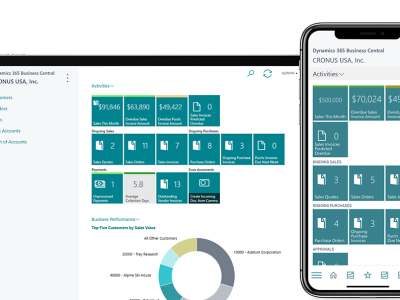
Managing bank transactions manually is time-consuming, error-prone, and inefficient for growing businesses. This is why many organizations are now choosing to connect Dynamics 365 Business Central with their bank to automate payments, bank reconciliations, and cash flow visibility.
In this guide, we’ll explain how to connect Microsoft Dynamics 365 Business Central with your bank, the available integration methods, key benefits, and best practices to ensure a smooth setup.
Why Integrate Bank with Dynamics 365 Business Central?
Integrating your bank account with Business Central allows you to automatically import bank statements, process payments, and reconcile transactions—without manual intervention.
Key Benefits of Bank Integration in Business Central
- Automated bank statement imports
- Faster and accurate bank reconciliation
- Real-time cash flow visibility
- Reduced manual errors and duplicate entries
- Improved financial control and compliance
Supported Bank Integration Methods in Business Central
Dynamics 365 Business Central supports multiple bank connectivity options depending on your region and banking partner.
1. Bank Feeds (Direct Bank Integration)
Business Central supports direct bank feeds where transactions flow automatically from your bank to the ERP system.
How it works:
- Business Central connects securely to your bank
- Transactions are imported automatically
- Statements are matched with ledger entries
Best for:
Businesses that want real-time or daily bank transaction updates.
2. Envestnet Yodlee Bank Feeds
Microsoft partners with Envestnet Yodlee to provide secure bank feed services in many countries.
Features:
- Secure, encrypted data exchange
- Supports multiple banks
- Automatic transaction synchronization
Best for:
Companies operating in regions where direct bank APIs are not available.
3. Manual Bank Statement Import (CSV / Excel)
For banks that don’t support APIs, Business Central allows manual bank file imports.
Supported formats:
- CSV
- Excel
- Bank-specific formats
Best for:
Small businesses or banks with limited digital integration.
4. Payment File Export (NEFT, RTGS, SEPA, ACH)
Business Central can generate bank-compatible payment files for uploading to bank portals.
Use cases:
- Vendor payments
- Salary payments
- International transactions
Best for:
Businesses that prefer controlled, approval-based payment processing.
Step-by-Step: How to Connect Bank with Dynamics 365 Business Central
Step 1: Create a Bank Account in Business Central
- Go to Bank Accounts
- Create a new bank account
- Enter bank details such as:
- Account number
- IFSC / SWIFT / IBAN
- Currency
- Bank branch details
Step 2: Enable Bank Feed Setup
- Open the bank account card
- Choose Set Up Bank Feeds
- Select your preferred integration method
- Authenticate using bank credentials or secure provider login
Step 3: Configure Bank Reconciliation
- Map bank transaction descriptions
- Set matching rules for:
- Payments
- Receipts
- Charges
- Enable automatic application where possible
Step 4: Import or Sync Bank Transactions
- Automatic sync (for bank feeds)
- Manual import (for CSV/Excel files)
- Review and validate imported transactions
Step 5: Perform Bank Reconciliation
- Match transactions with ledger entries
- Resolve unmatched items
- Post reconciliation to update accounts
Bank Reconciliation in Dynamics 365 Business Central
Bank reconciliation ensures your ERP ledger matches actual bank balances.
Key Features
- AI-assisted transaction matching
- Manual adjustments for unmatched entries
- Audit-ready reconciliation reports
This process improves accuracy and helps meet financial compliance requirements.
Common Challenges in Bank Integration (and How to Fix Them)
Challenge 1: Unsupported Bank
Solution:
Use manual import or third-party connectors.
Challenge 2: Data Mismatch or Duplicate Entries
Solution:
Configure matching rules and validation checks properly.
Challenge 3: Security Concerns
Solution:
Use encrypted bank feeds and role-based access controls.
Best Practices for Bank Integration in Business Central
- Choose the right integration method based on bank capability
- Automate reconciliation rules early
- Review bank feeds regularly
- Maintain approval workflows for payments
- Work with a certified Business Central partner
Why Use a Business Central Partner for Bank Integration?
While Business Central offers built-in tools, professional implementation ensures:
- Correct setup based on local banking rules
- Faster go-live with minimal errors
- Custom automation and workflows
- Ongoing support and optimization
A certified partner can also help integrate multiple banks, currencies, and compliance requirements.
Final Thoughts
Connecting Dynamics 365 Business Central with your bank transforms financial operations by eliminating manual work, improving accuracy, and providing real-time financial insights.
Whether you use direct bank feeds, Yodlee integration, or manual imports, Business Central offers flexible options to suit every business size and banking structure.
Frequently Asked Questions (FAQs)
Can Business Central integrate with Indian banks?
Yes, Business Central supports bank file imports, payment exports (NEFT/RTGS), and third-party integrations for Indian banks.
Is bank integration secure in Business Central?
Yes. Microsoft uses encrypted connections, secure authentication, and compliance-ready standards.
Can I connect multiple bank accounts?
Absolutely. Business Central supports multiple bank accounts and currencies.