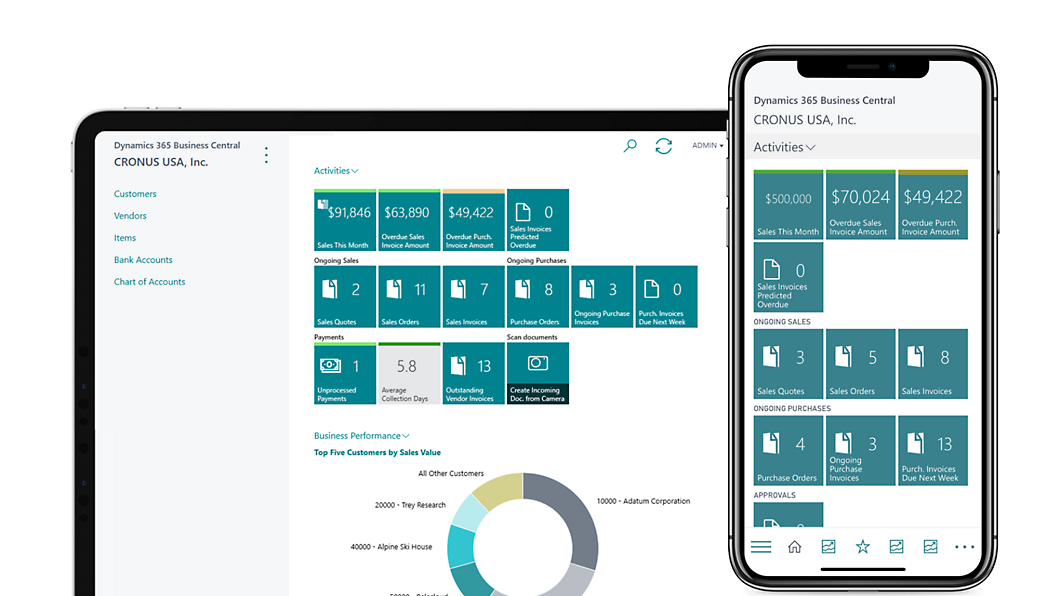
n today’s fast-moving business environment, work no longer happens only at desks. Sales teams are on the field, managers travel frequently, and approvals can’t wait for someone to log in from a laptop. This is where mobile ERP becomes critical.
With Microsoft Dynamics 365 Business Central, users can securely access key business data directly from their Android or iPhone, anytime and anywhere.
This guide explains how to access Dynamics 365 Business Central on mobile devices, step by step, along with features, limitations, security best practices, and common issues.
Why Access Business Central on Mobile?
Mobile access to Business Central enables teams to:
- View real-time financial and operational data
- Approve purchase orders and sales documents
- Track inventory and customer information
- Stay productive while working remotely
Instead of waiting to reach a desktop, decisions can be made on the move.
Devices Supported by Business Central
Business Central mobile access is available on:
- Android smartphones & tablets
- iPhone
- iPad
Microsoft provides a dedicated mobile app, optimized for touch-based navigation and smaller screens.
Method 1: Access Business Central Using the Mobile App (Recommended)
The easiest and most secure way to use Business Central on mobile is through the official app.
Step 1: Download the Business Central App
- Android users: Open Google Play Store
- iPhone users: Open Apple App Store
Search for “Dynamics 365 Business Central” and install the app.
Step 2: Sign In to Your Account
- Open the app
- Enter your work email ID (Microsoft 365 account)
- Sign in using your organization credentials
If multi-factor authentication (MFA) is enabled, complete the verification.
Step 3: Select Environment & Company
Once logged in, you can:
- Choose the environment (Production / Sandbox)
- Select the company you want to work in
You’ll now see the Business Central mobile dashboard.
Method 2: Access Business Central via Mobile Browser
You can also access Business Central through a browser like Chrome or Safari, though the experience is less optimized than the app.
Steps:
- Open browser on your phone
- Go to your Business Central URL
- Log in using Microsoft credentials
📌 Note: Some screens may be harder to navigate on small displays. The mobile app is always recommended.
Key Features Available on Mobile
Business Central mobile app focuses on daily tasks and quick actions.
Common Features You Can Use:
- View customers, vendors, and items
- Check balances, invoices, and orders
- Approve documents
- Access dashboards and KPIs
- View reports (mobile-friendly layouts)
What’s Not Available on Mobile?
While powerful, the mobile app does have limitations:
- Advanced configurations
- Complex report customization
- Extensions management
- Full accounting setups
📌 For heavy back-office tasks, desktop access is still required.
How Business Central Mobile Improves Productivity
For Sales Teams
- Create and review sales orders
- Access customer data during meetings
For Managers
- Approve purchase orders instantly
- Monitor cash flow and KPIs
For Warehouse Teams
- Check inventory availability
- Validate item details on tablets
Security of Business Central on Mobile
Microsoft follows enterprise-grade security standards, even on mobile.
Security Features Include:
- Azure Active Directory authentication
- Multi-factor authentication (MFA)
- Role-based access control
- Encrypted data transmission
Best Practices:
- Enable MFA for all mobile users
- Restrict access by role
- Use mobile device management (MDM) if possible
Common Issues and How to Fix Them
1. Login Not Working
- Check internet connection
- Verify Microsoft 365 account access
- Ensure user license is assigned
2. App Not Loading Data
- Refresh the app
- Log out and log back in
- Confirm correct environment selection
3. Permission Errors
- Review user roles in Business Central
- Ensure mobile-friendly permissions are assigned
Tips for Better Mobile Experience
- Customize role centers for mobile users
- Use approval workflows
- Train users on mobile-specific navigation
- Keep dashboards simple and focused
Business Central Mobile App vs Desktop: Quick Comparison
| Feature | Mobile App | Desktop |
|---|---|---|
| Quick approvals | ✅ | ✅ |
| Real-time data | ✅ | ✅ |
| Setup & configuration | ❌ | ✅ |
| Custom reports | Limited | Full |
| On-the-go access | ✅ | ❌ |
Is Business Central Mobile Right for Your Business?
If your teams:
- Work remotely
- Travel frequently
- Need quick approvals
- Require real-time insights
Then enabling mobile access to Dynamics 365 Business Central is not optional — it’s essential.
Final Thoughts
Accessing Dynamics 365 Business Central on Android and iPhone empowers teams to work smarter, faster, and with greater flexibility. While the desktop version remains critical for advanced operations, the mobile app is perfect for decision-making, approvals, and real-time visibility.
Cloud ERP isn’t just about automation anymore — it’s about accessibility.